Qualified Electronic Signatures... with problems?
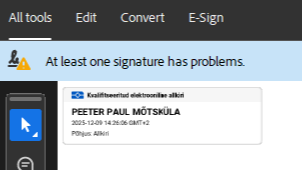
If you see the above in Acrobat, you may want to scroll down to the workaround without reading the rant and the background first (or at all).
The Rant
On 27 November 2024, Estonian trust service provider SK ID Solutions started issuing all new Smart-ID accounts using their new intermediate certificates including the “SK ID Solutions EID-Q 2024 E”. They had announced it on their website a bit more than a month in advance, calling all e-service providers to add the new certificates. The certificates are available from the provider’s website, Estonian Trusted List, and EU Trusted List.
More than a year later, American multinational software company Adobe Inc. still has no clue about these certificates, and the qualified electronic signatures given using the Smart-ID accounts created after the change show up in Acrobat with a notice stating that a “signature has problems”.
I don’t know and don’t care if it was Adobe who doesn’t care to refresh the lists of trusted certificates in their products, or if it was SK ID Solutions who didn’t bother to notify Adobe directly, but for crying out loud, get your acts together!
The Background
Estonians were used to the electronic signatures already when the eIDAS regulation was not even a dream. The small Nordic/Baltic country’s national ID cards contained (and still contain) cryptographically strong digital identities. Every resident could issue and verify digital signatures that were technically on par with the strongest level of e-signature under the (then non-existent) eIDAS – the QES, or Qualified Electronic Signature. Such signatures were legally equivalent to a handwritten signature, and in certain cases could even the substitute a notarial certification.
An electronic signature is basically a cryptogram created with a private key which corresponds to a public key that is enclosed in a certificate and signed with the private key of a certificate authority (CA), whose public key is listed in a “trusted list”. So if you have and trust the public key of the CA that issued me a certificate, you can be reasonably sure that I am the only person controlling the private key that corresponds to the public key in my certificate. Which means that if you succeed verifying a signature with my public key, then you can be reasonably sure that this signature was given by me.
There are basically three ways to sign electronic documents:
- put one or more document files into a container file, calculate the signature, and put the signature and the signer’s certificate into the same container;
- calculate the signature, and put it and the signer’s certificate into the document file itself;
- calculate the signature and store it separately from the original document (but preferably together with the signer’s certificate).
For practical usability considerations, only the first two are widely used. The benefit of the container model is that it allows signing multiple files at once, and not just traditional document formats. The benefit of the signature-in-document model is that the document remains directly accessible without the need of taking it out of the container every time one needs to consult its contents.
Estonia has long been in the container party, and is primarily using the .asice files (ASiC-E containers). The DigiDoc4 software, available free of charge from the id.ee website, makes handling these a breeze. However, the makers of mass-market consumer software have been reluctant to supporting the format. Most desktop file managers can nowadays handle regular .zip archives, but .asice (which is technically a .zip containing the original documents, the signatures, and some metadata) remains a mystery.
So, in international dealings it is often best to put the signatures into PDF files. That’s where Adobe and friends come into play. To be able to verify the signature, you only need the public key (which is contained in the certificate which is stored along with the signature). But to associate a signer with a signature, you need to have and trust the public key (or a self-signed certificate) of the CA.
Acrobat contains a list of CA certificates that Adobe trusts, and if the signature on signer’s certificate can be verified against one of these, then it shows you a green checkmark along with an assuring statement that the signature is valid. If Acrobat doesn’t have a CA certificate in its built-in trusted list, it will show a yellow sign with a warning that the signer’s identity cannot be reliably established.
The Smart-ID software is reliable enough to be deemed a qualified signature creation device. The process of issuing Smart-ID certificates is solid enough to allow these certificates to be deemed qualified certificates. An electronic signature given with a qualified certificate and a qualified signature creation device is a qualified electronic signature. It has the legal power of a handwritten signature, and sometimes even more.
Now you can have a rock-solid electronic signature, but since Adobe doesn’t know the corresponding CA certificate, it will show you a warning instead of a confirmation. And that’s a problem.
The Workaround
The reason Acrobat shows some of these signatures as problematic is that Adobe has failed to include in its built-in trusted list the latest root certificates used with Estonian Smart-ID. You can add them manually by taking the following steps:
- Open the document in in Acrobat. If Acrobat says that “at least one signature has problems”, open the signature panel.
- Right-click on a problematic signature and choose “Show signature properties”, then click on “Show Signer’s certificate”
- In the left panel of the “Certificate Viewer” dialog that opens, select “SK ID Solutions ROOT G1E”. In the right panel, select the “Trust” tab and click “Add to Trusted Certificates”. Click “OK” to close the “Acrobat Security” dialog.
- In the “Import Contact Settings” dialog that opens, check that the “Subject” in “Certificate Details” is “SK ID Solutions ROOT G1E”, select “Use this certificate as a trusted root” and click “OK”.
- Click “OK” to close all dialogs, close Acrobat, reopen the same document in Acrobat. The signatures should be now shown as valid.
To verify that you’re dealing with the right root certificate, you may check that the SHA1 digest in the “Details” tab of the “Certificate Viewer” is identical to the one shown for the SK ID Solutions ROOT G1E at https://www.skidsolutions.eu/resources/certificates/. And to verify that this skidsolutions.eu is trusted, you may go to the EU Trusted List browser at https://eidas.ec.europa.eu/efda/trust-services/browse/eidas/tls/tl/EE, select “SK ID Solutions AS”, open the “Detailed information” section, and follow the link listed under “Information URIs”.
Why is it a workaround, not a solution? Mainly because you can only fix your copy of Acrobat. If you want other people to rely on your signatures given with your post-November-2024 Smart-ID, then they must fix their Acrobats, or ignore the yellow warnings.
Originally posted on LinkedIn